Publish your first post
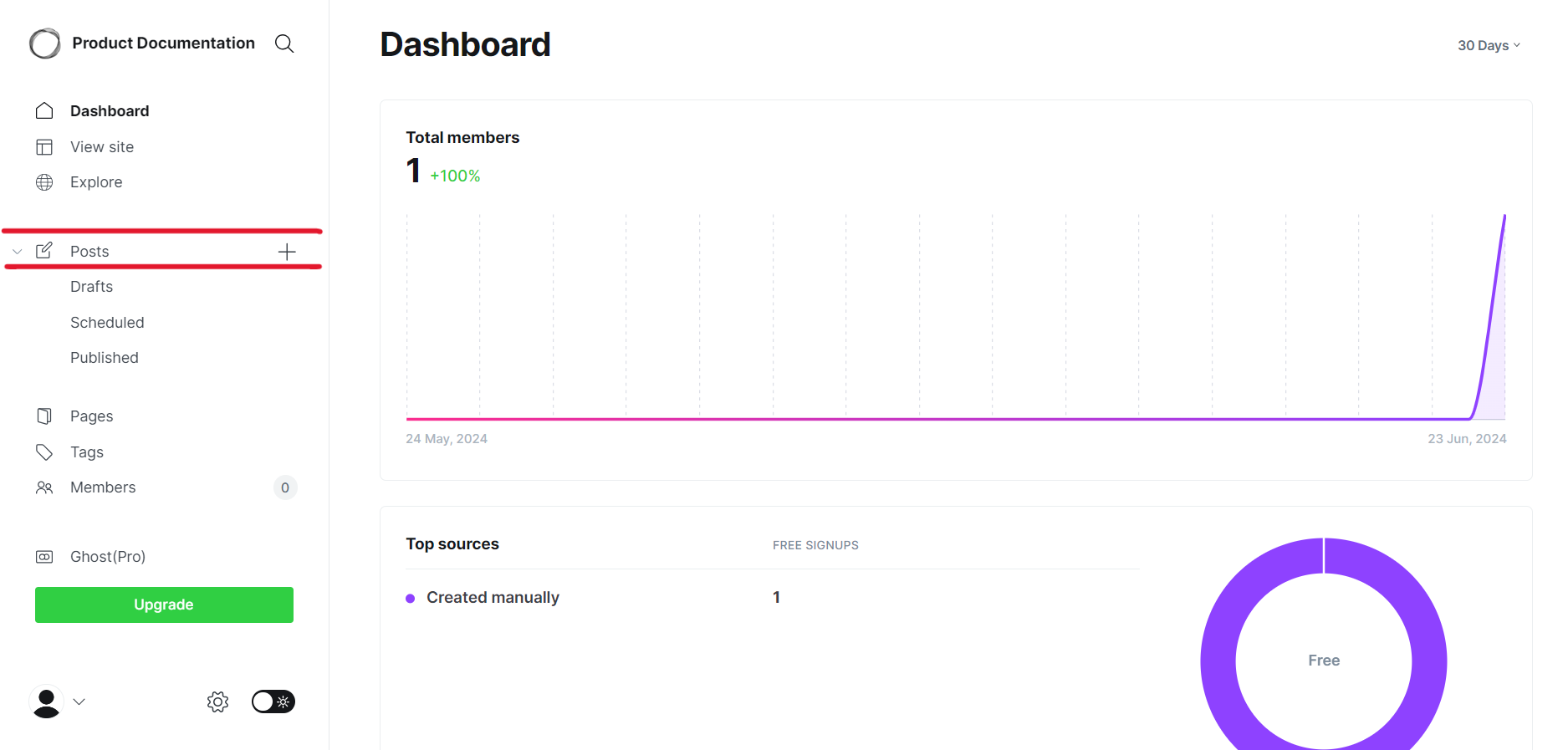
In the dashboard, the Posts section allows you to create, edit, and manage your content.
After creating your account (opens in a new tab) and exploring the PubliFast dashboard (opens in a new tab), you cans publish your first post.
To do so, follow this steps:
-
Access your project in PubliFast (opens in a new tab).
-
In the homepage, click the + button in the Post section.
- It opens the content editor.
-
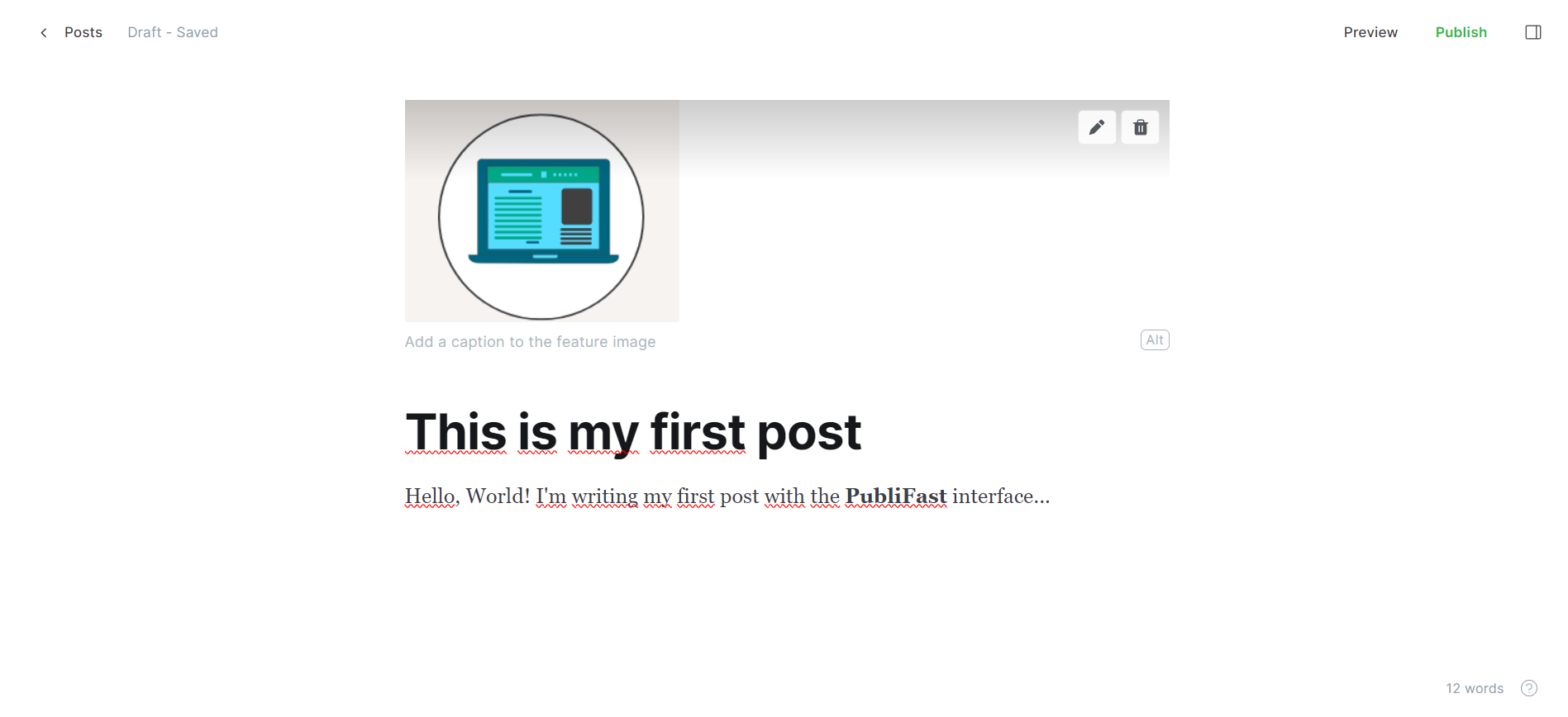
In the content editor, add everything you need to create your post:
- Feature image: upload an image from your desktop or select one from Upstash repository.
- Title: write an appealing title for your post.
- Post content: be creative to attract your audience.
-
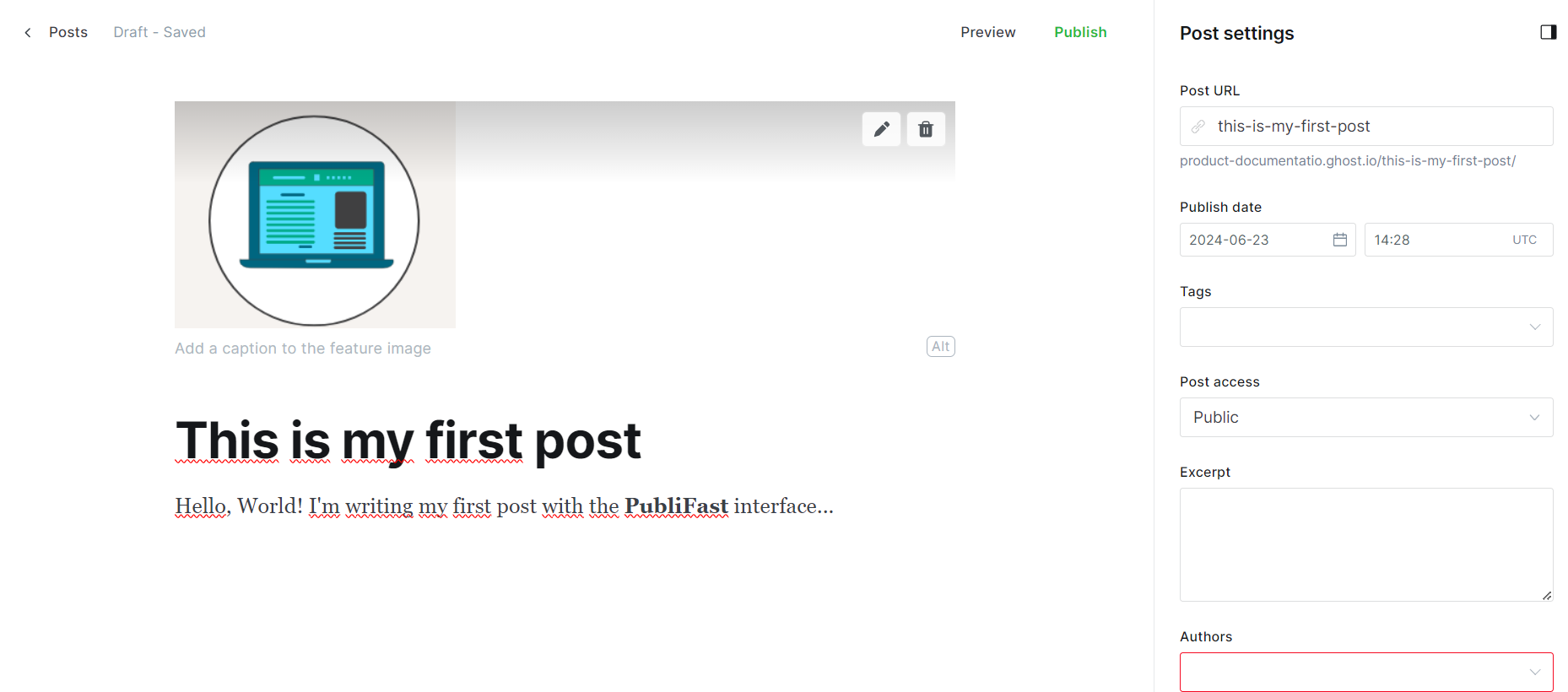
Then, click the Settings icon, located in the upper right corner.
-
This opens a form to complete the post configuration, including:
- Post URL: your users will use this link to access your post.
- Publish date: the date that will appear as the publishing date for your post. You can publish it immediately or schedule your post (opens in a new tab).
- Tags: descriptive labels to identify and group your posts. Example: News.
- Post access: what users could access your new post. Available options: Public, Members only, Paid-members only, and Specific Tier(s).
- Excerpt: a summary about your post.
- Authors: who wrote the post.
- Feature this post: enable this switch to highlight your post in your blog's homepage.
-
-
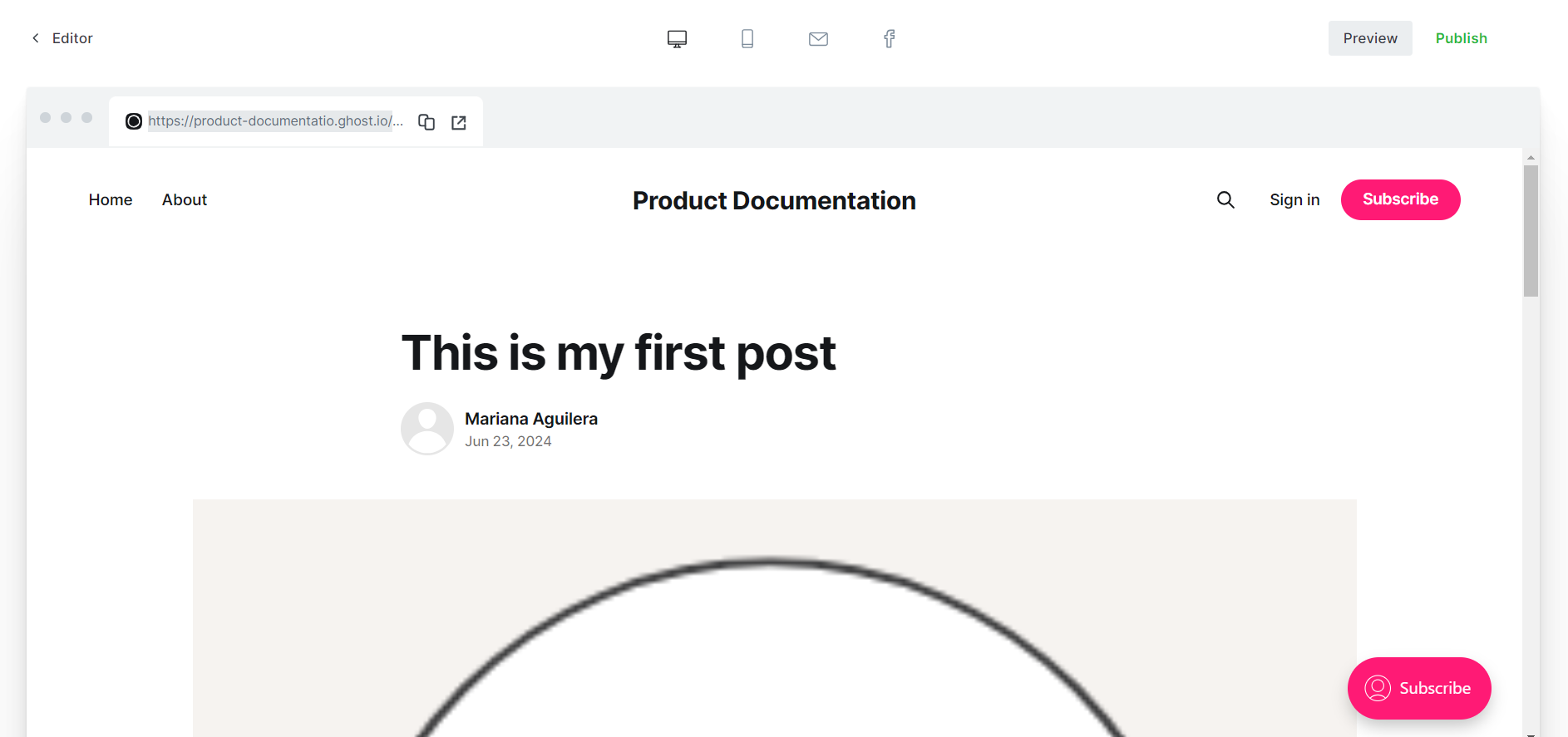
Select the Preview option to look how the post will look in your blog.
- When you are finished, click the Publish option.
Done! Now your first post is published!
💡 Read the how to edit your post (opens in a new tab) article to go further.