How to delete a post
There are two ways to delete a post:
This guide explains you how to complete this task with both methods.
🚨 Deleting a post is a permanent action and cannot be reversed. As an alternative, you can unpublish a post (opens in a new tab).
Right-click deletion
This method can be used in the Post list.
- Access your project in PubliFast (opens in a new tab).
- In the left menu, click the Posts option.
- This displays a list of all your posts, including published and draft posts.
- Find the post you want to delete and do a right-click selection with your mouse.
- In the menu, select the Delete option.
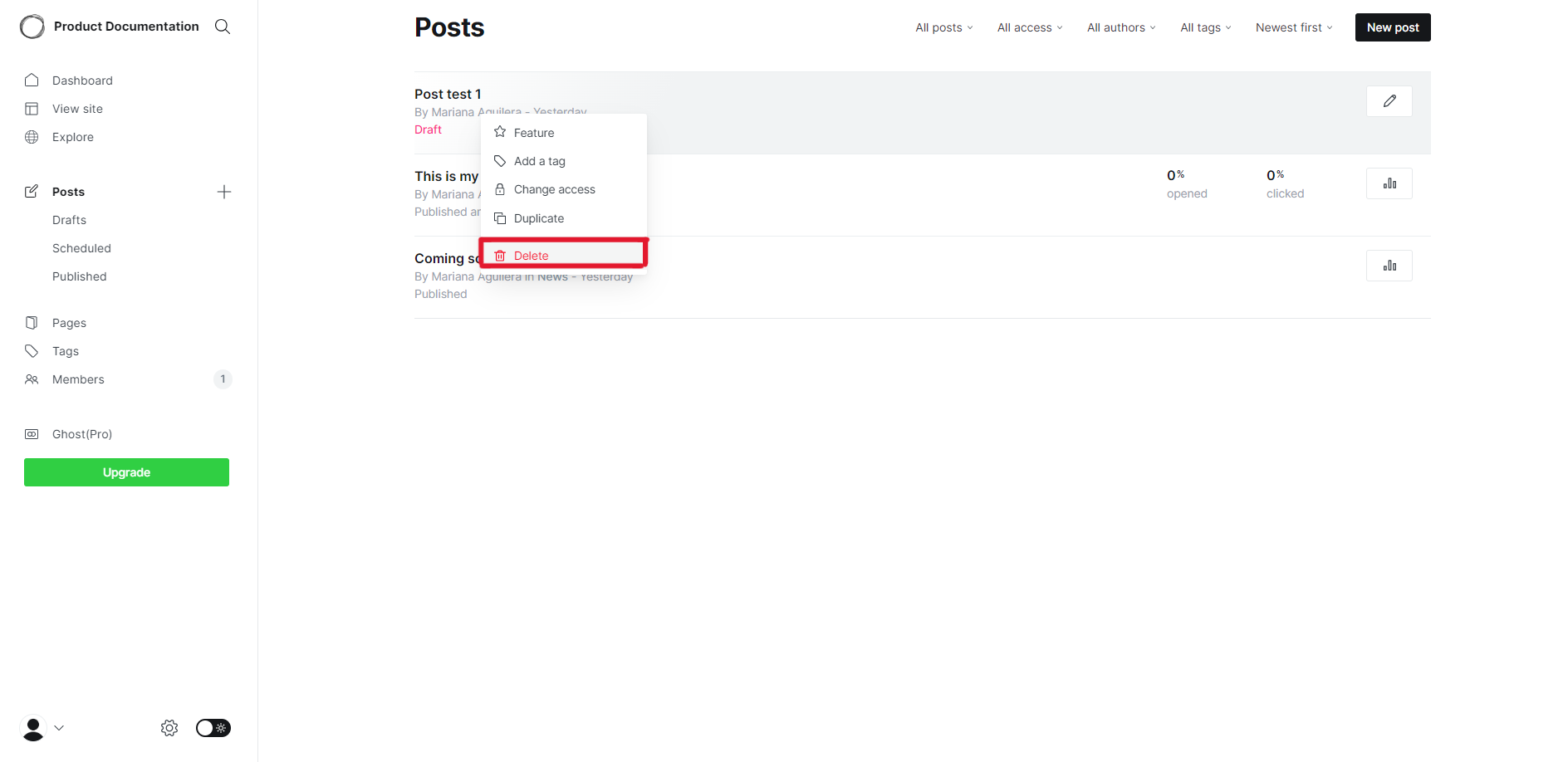
- It opens a modal confirming that you want to delete the post. Click the Delete button.
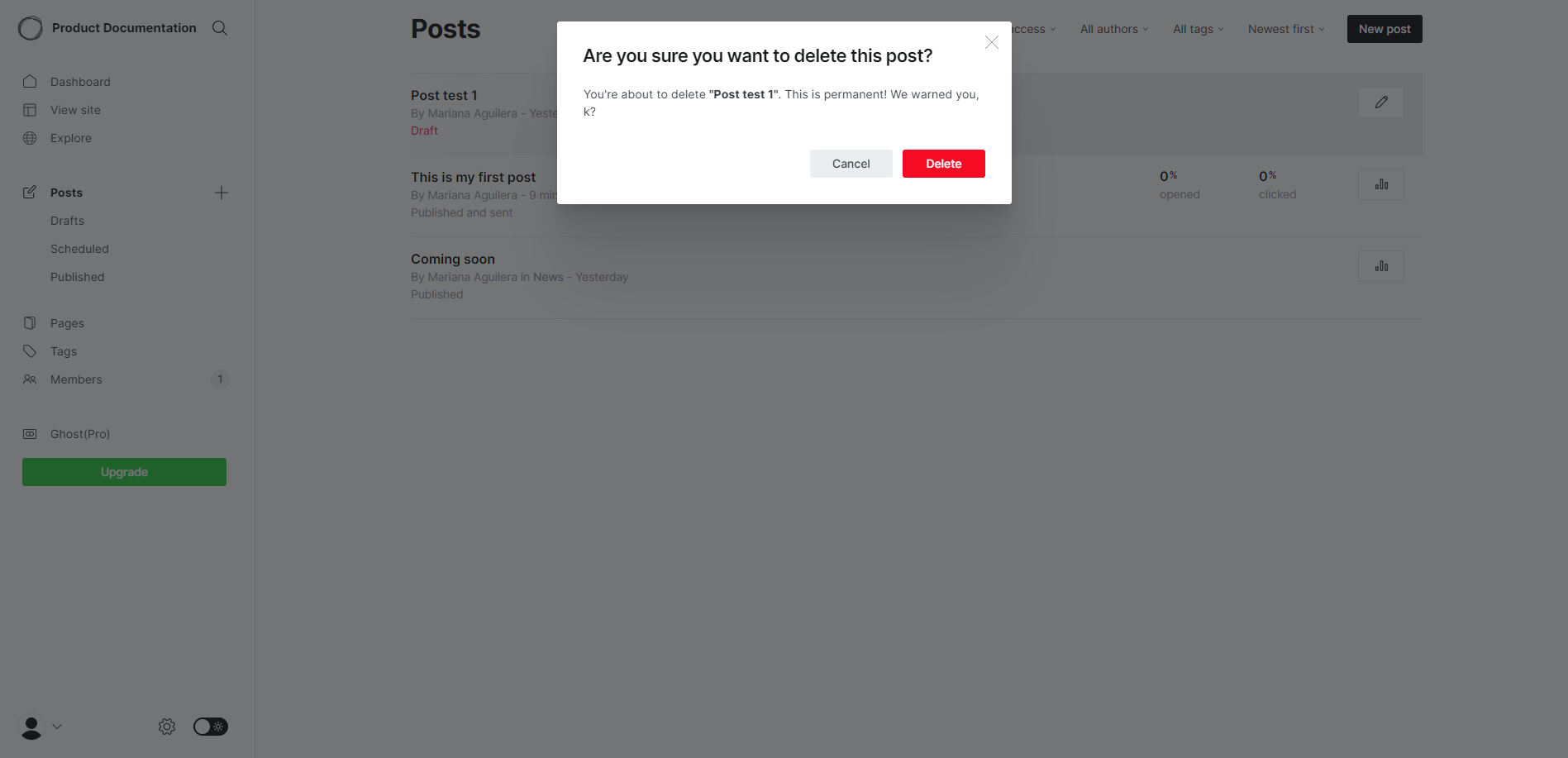
Done! Your post has been deleted.
Content editor deletion
Through this method, open a specific post and delete it from the Settings form.
- Access your project in PubliFast (opens in a new tab).
- In the left menu, click the Posts option.
- This displays a list of all your posts, including published and draft posts.
- Open the post you want to delete.
- Click the Settings icon, locating in the upper right corner.
- Scroll down to find and click the Delete post button in the bottom of the form.
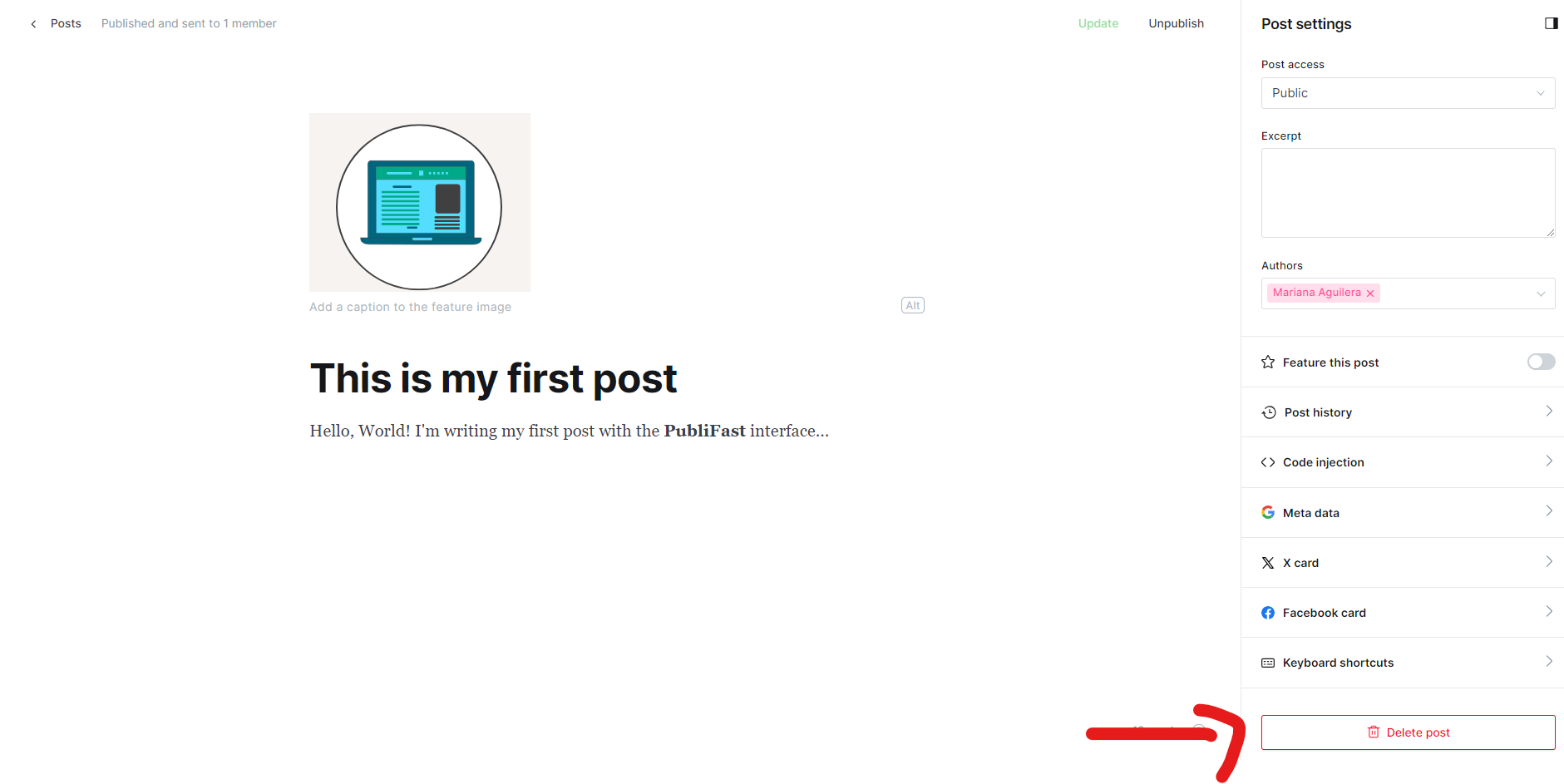
- It opens a modal confirming you want to delete the post. Click the Delete button.
Done! Your post has been deleted.